

Turn Data into Action with Microsoft Power BI
Visualize, analyze, and share business insights in real-time with powerful dashboards and interactive reports.

Empower Your Decisions with Real-Time Analytics
Power BI enables professionals, analysts, and decision-makers to connect, model, and visualize data seamlessly—enhancing clarity and confidence across your organization.
-
Unified Data Platform
Connect to hundreds of data sources including Excel, SQL, and cloud services.
-
Powerful Visualizations
Create interactive dashboards and custom reports tailored to your KPIs.
-
Collaborative Insights
Share reports securely across teams and empower everyone with data-driven decisions.

Dynamic Dashboards & Reports
Easily build interactive reports that provide deep insights into your business operations.
- Drag-and-drop report creation
- Cross-filtering and drill-down functionality
- Real-time data updates and alerts

Connect and Transform Your Data
Integrate data from multiple sources and transform it using Power Query for accurate, consistent reporting.
- Support for Excel, Azure, SharePoint, SQL Server, and more
- Data modeling with DAX and custom measures
- Automate workflows with Power Automate integration
Course Syllabus Overview
This is a brief overview of the syllabus. For more detailed information on each topic, please download the full syllabus.
Download Full SyllabusModule 1: Introduction to Power BI
1.1: What is Power BI
Learn about Power BI’s capabilities and use cases.
1.2: Power BI Desktop vs Service
Understand the differences and when to use each.
1.3: Interface Overview
Explore the Power BI workspace and navigation.
Module 2: Connecting & Importing Data
2.1: Data Sources
Connect to Excel, CSV, databases, and cloud sources.
2.2: Data Import Methods
Import data into Power BI Desktop.
2.3: Data Refresh
Set up and manage data refresh schedules.
Module 3: Data Transformation & Modeling
3.1: Power Query Editor
Clean and transform raw data.
3.2: Data Types & Relationships
Define data types and create relationships between tables.
3.3: Calculated Columns & Measures
Use DAX to create custom calculations.
Module 4: Visualizations & Dashboards
4.1: Creating Visuals
Build bar charts, pie charts, maps, and more.
4.2: Customizing Visuals
Format and style visuals for clarity and impact.
4.3: Interactive Dashboards
Add slicers, filters, and tooltips for interactivity.
Module 5: Publishing & Sharing Reports
5.1: Publishing to Power BI Service
Upload and manage reports online.
5.2: Sharing & Collaboration
Share dashboards with team members and set permissions.
5.3: Mobile Access
Optimize and view reports on mobile devices.
Module 6: Advanced Analytics & Automation
6.1: Drillthrough & Bookmarks
Add interactive navigation and storytelling features.
6.2: Advanced DAX Functions
Use complex DAX formulas for deeper analysis.
6.3: Scheduled Refresh & Alerts
Automate data updates and set up notification alerts.
Learning Support & Career Services
Enhance your learning with real-time help, regular assessments, and expert career guidance.

Live Doubt-Solving Sessions
Attend live Q&A and mentoring sessions to clarify your doubts in real time.

Assignments & Weekly Tests
Regular assessments to track your progress and reinforce learning.

Interview & Career Preparation
Personalized mock interviews, coding interview practice, and resume-building tips.
💥 Limited-Time Discounts on Tech Courses!
Grab your spot and save big on the skills that matter.
🎓 School Student Deal – 30% OFF
Get 30% off beginner-friendly coding, web, and STEM courses! Start your tech journey today.
Get Offer🏫 College Exclusive – 25% OFF
Advance your tech skills with 25% off specialized software and data courses built for college students.
Claim Deal👥 Group Deal – Save up to 40%
Join with 3+ friends and unlock up to 40% in savings! Study together, succeed together.
Join Now⚡ Flash Sale – 50% OFF (24 Hrs!)
Enjoy a massive 50% off any course for the next 24 hours. Don’t miss out!
Special offerPower BI Interview Questions
Prepare for your next analytics interview with commonly asked Power BI questions covering concepts from data import to dashboard publishing and automation.
1.1 What is Power BI and how is it different from tools like Excel?
1.2 What are the components of the Power BI ecosystem?
1.3 How do Power BI Desktop and Power BI Service differ in terms of use cases?
1.4 Why is Power BI considered a self-service business intelligence tool?
1.5 How does Power BI support data-driven decision making?
2.1 What are the different data sources you can connect to in Power BI?
2.2 How does Power BI handle real-time data connections?
2.3 What are the steps involved in importing data from Excel into Power BI?
2.4 What is DirectQuery and how does it differ from Import mode?
2.5 How do you manage and schedule data refreshes in Power BI?
3.1 What is Power Query and how is it used for data transformation?
3.2 How do data types affect modeling in Power BI?
3.3 What are calculated columns and how are they different from measures?
3.4 What is the role of relationships between tables in a data model?
3.5 How does DAX support advanced analytics and custom calculations?
4.1 How do you choose the right visualization for a given dataset?
4.2 What is the difference between a report and a dashboard in Power BI?
4.3 How do you use slicers and filters to add interactivity to visuals?
4.4 What are tooltips and how do they improve user experience in reports?
4.5 What are best practices for creating clear and impactful data visualizations?
5.1 What steps are involved in publishing a report from Power BI Desktop to the Service?
5.2 How do you manage user access and permissions when sharing reports?
5.3 How can reports be accessed on mobile devices using the Power BI app?
5.4 What is a workspace in Power BI and how is it used for collaboration?
5.5 What are the pros and cons of embedding Power BI reports in web applications?
6.1 What are bookmarks and how can they enhance storytelling in dashboards?
6.2 How does drillthrough functionality work in Power BI?
6.3 What are advanced DAX functions and when should you use them?
6.4 How can you automate report refresh and trigger alerts in Power BI?
6.5 What are the benefits of integrating Power BI with external services like Microsoft Teams or Power Automate?
Power BI Project Ideas
Build practical business intelligence solutions using Power BI. These projects help you master data visualization, analytics, and KPI tracking for real-world use.
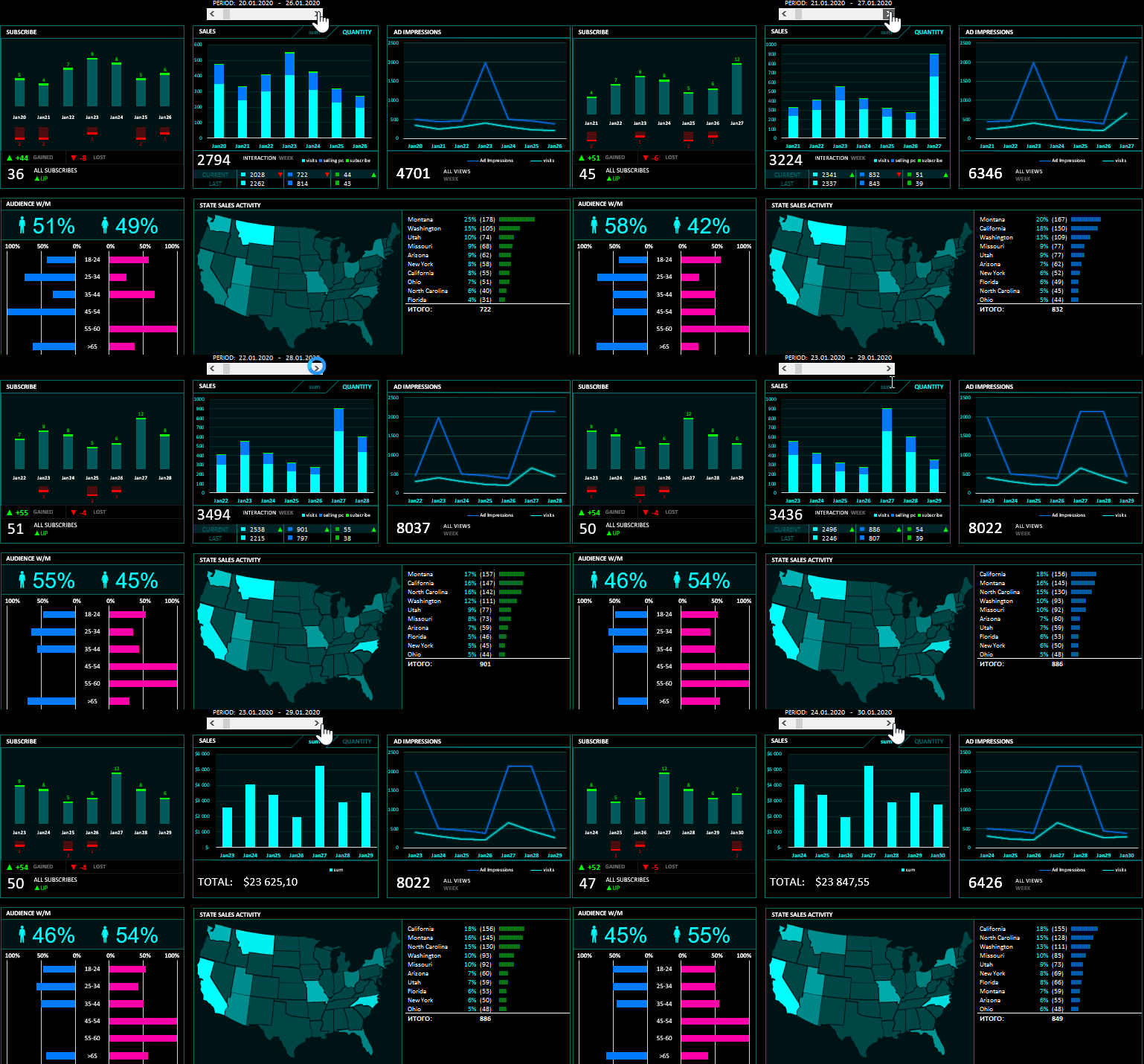
Sales Dashboard
Visualize Sales Data – Interactive Dashboards with Filters and ChartsCreate an interactive sales dashboard using sample data. Include multiple visualizations, filters, and key performance indicators.

Customer Insights Report
Understand Your Audience – Demographic & Behavioral AnalyticsBuild a Power BI report that analyzes customer demographics and behavior, highlighting key trends and actionable insights.
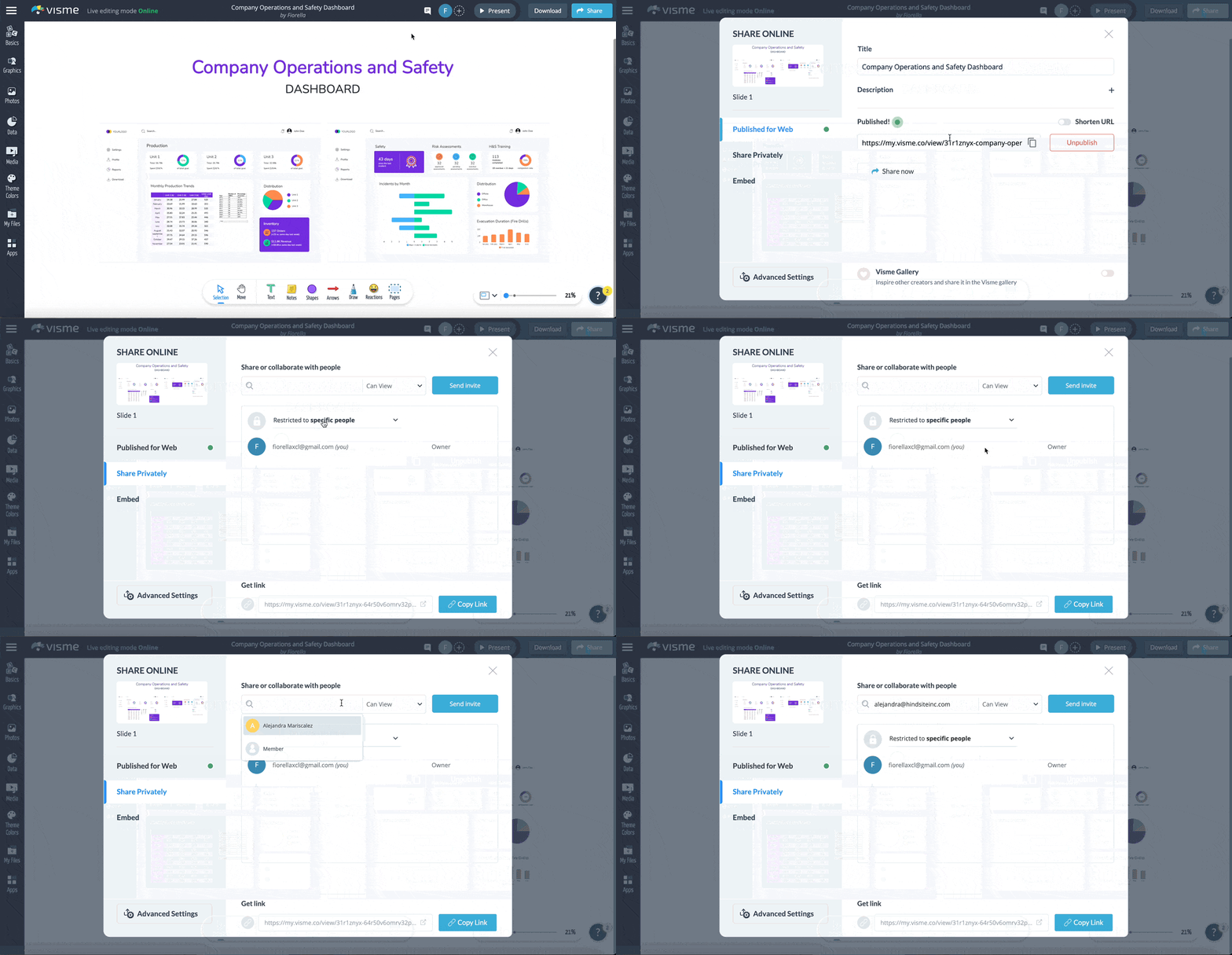
Business Performance Tracker
Monitor KPIs – Real-Time Dashboardwith Auto-Refresh
Design a dynamic dashboard that tracks key business KPIs with automated data refresh and sharing features for stakeholders.